Editing Languages
Once a language is created, the details of the language may require editing or changing. This may be necessary if different character sets or other language details have to be changed for the language.
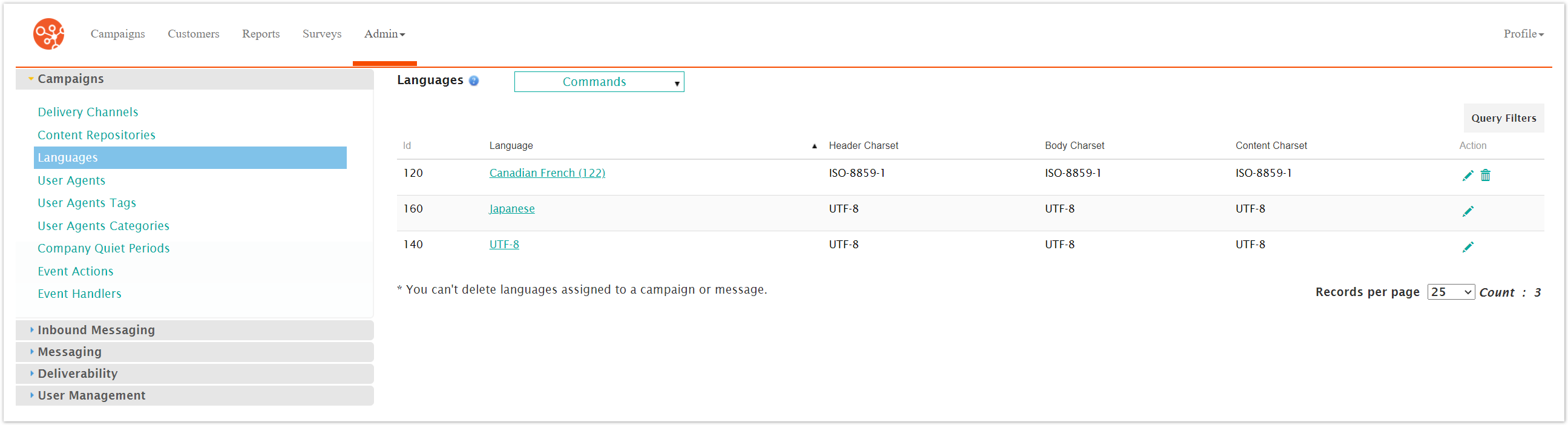
Editing a Language
To edit a language:
Navigate to the Company Admin screen.
Under the Campaigns sub-menu in the menu bar on the left, click on the Languages menu item. The Languages screen appears.
Click on the language name link from the list of languages or click on the Edit icon (
 ) beside the desired language. The Edit Language details screen appears displaying the details of the language.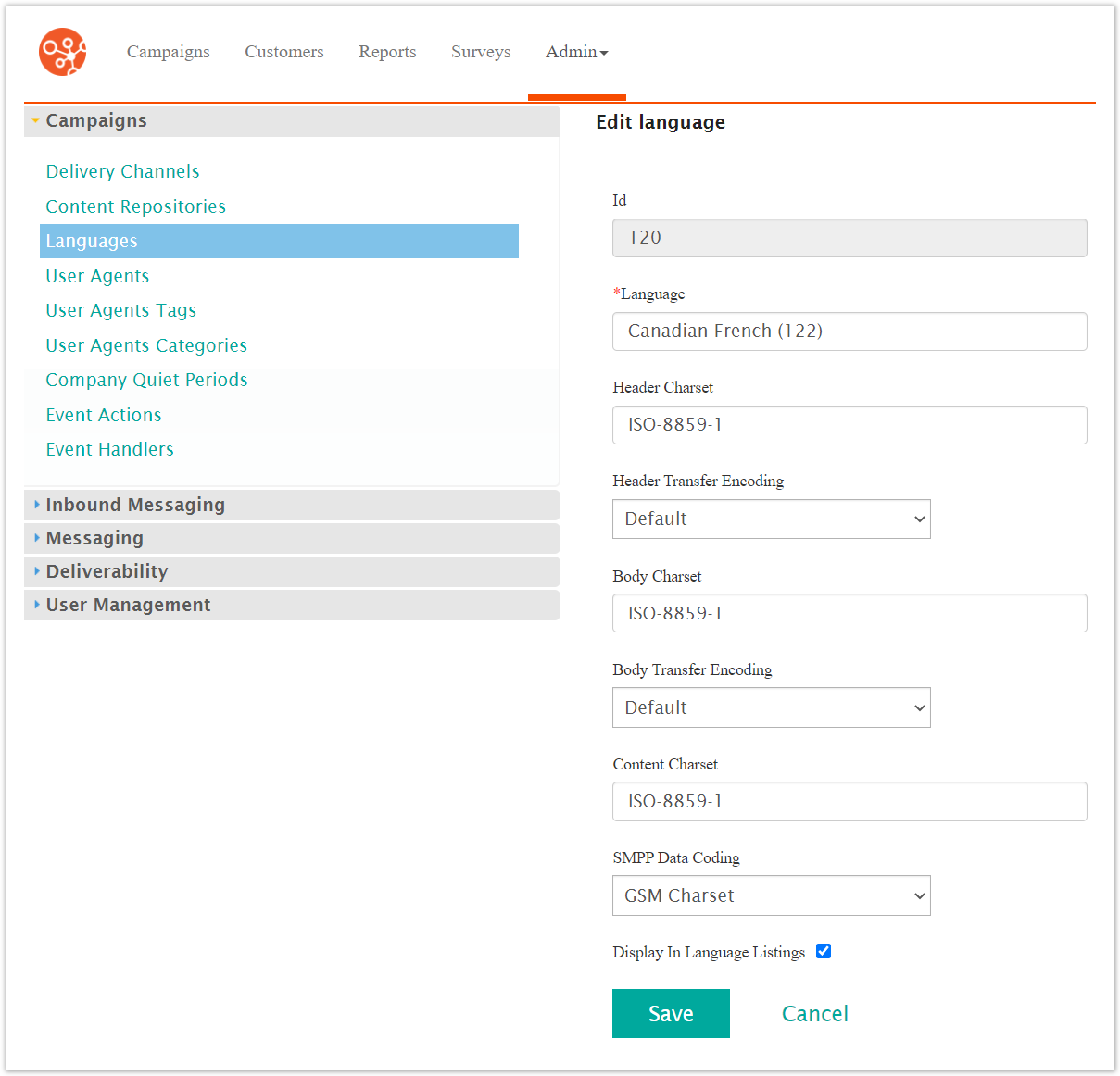
Edit the language details:
Language: The name of the language
Header Charset: The character set for the language when used in headers (e.g. UTF-8, ISO-8859-1)
Header Transfer Encoding: Encoding used for the language in headers:
Default: Use default encoding
QP: Quoted Printable encoding
Base64: Binary encoding
Body Charset: The character set used for the language when used in the body of messages (e.g. UTF-8, ISO-8859-1)
Body Transfer Encoding: Encoding used for the language in the body of messages:
Default: Use default encoding
QP: Quoted Printable encoding at all times
Base64: Binary encoding at all times
QP (if needed): Quoted Printable encoding used when necessary
Base64 (if needed): Binary encoding used when necessary
Content Charset: The character set used for message content
SMPP Data Coding: Data coding used for SMS messages
Display in Language Listings: If checked, the language will be made available for use throughout Connect
To cancel without saving the changes to the language, click the Cancel button. The Languages screen displays. The changes to the language are not saved.
Click the Save button. The Languages screen displays with the changes to the language saved.