Conversion Report
Conversion Reports

The Conversion Tracking Report details the revenue generated as a result of the messages sent to customers. The report records conversions of sales resulting from the customer opening messages and clicking on links navigating the customer to sales pages to make purchases. The report tabulates the following:
Customer ID: The Connect ID for the customer
Customer Name: The name of the customer
Link ID: The ID for the link clicked on by the customer resulting in a sales conversion
Total Value: The total dollar value of purchases made as a result of the conversion
Invoice No.: The identifying number for the invoice of the customer's purchase
Conversion Time: The time of the conversion or sale
Using the Conversion Tracking Report
To view the Conversion Tracking Report:
Navigate to the Reports screen:
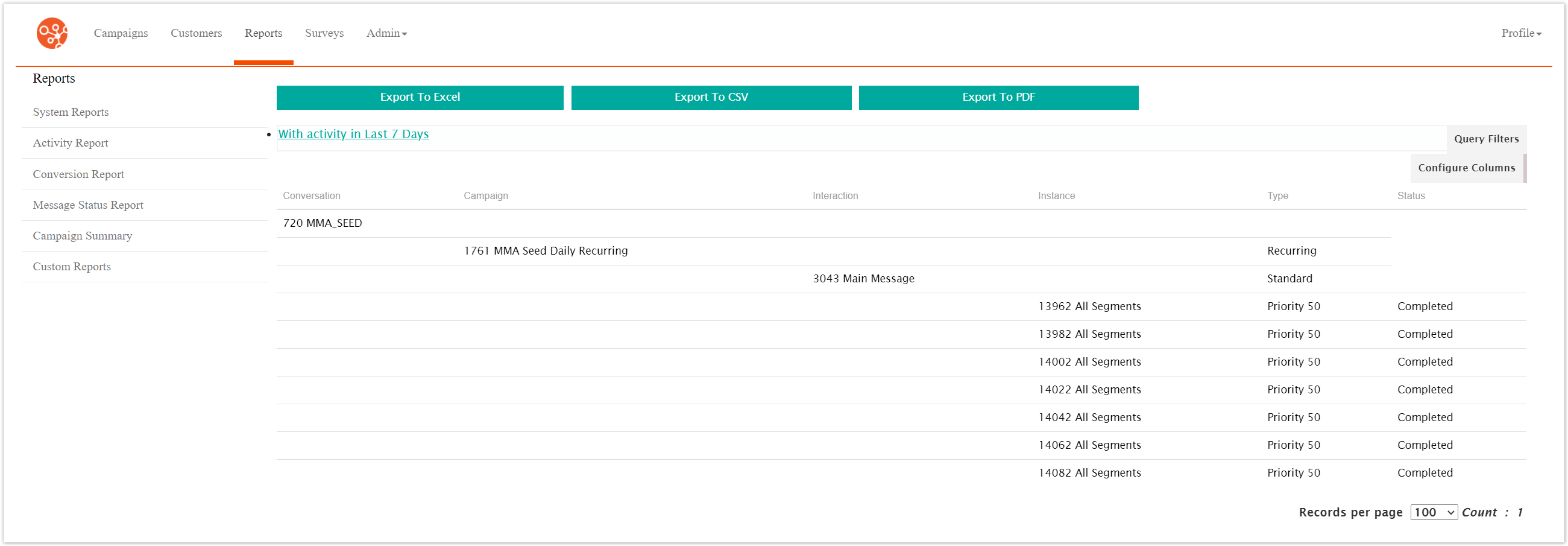
Click the Conversion Report menu option.
The Conversion Report displays.
To change the reporting options of the report:
Click the Query Filters button.
The Conversion Report Query Filters area displays.
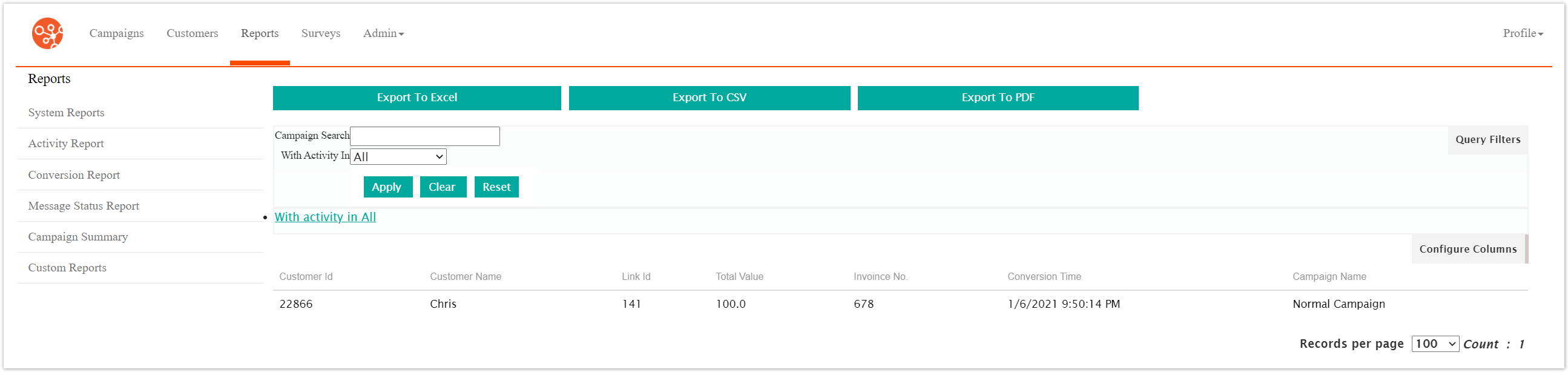
Enter the report options:
Campaign Search: The desired campaign to be reported
With Activity In: Filter the report results by time
To clear any entered options, click the Clear button.
Click the Apply button. You are returned to the Campaign Summary Report screen with the report displaying values using the entered report options.
Click the Configure Columns to set the columns that are displayed in the report.
You can set all columns to appear in the Campaign screen by pressing the All button.
You can set none of the columns appear besides the default by pressing the None button.
Click the Apply button. The selected columns will be displayed.
To return to the previous menu, click the Back button.
You are returned to the campaign message status report.
To export the report to a PFD file, click the Export to PDF button.
The report is exported to a PDF in your browser. Check your browser's 'Download' folder for the file.
To export the report to a CSV file, click the Export to CSV button.
The report is exported to a CSV in your browser and able to be opened by a spreadsheet program. Check your browser's 'Download' folder for the file.