Campaign Activity Reports
Campaign Activity Reports
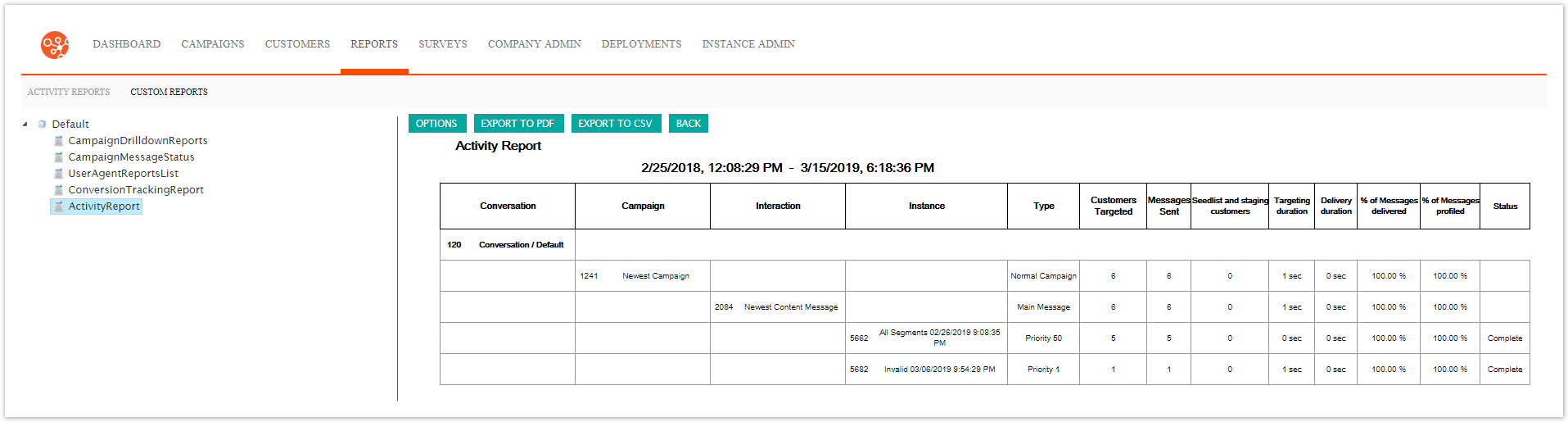
The Campaign Activity Report provides an overview of the campaign activity of messages and customer interaction. The report tabulates the following:
Conversation: The conversation associated with the campaign
Campaign: The campaign being reported on
Interaction: The name of the message content sent from the campaign
Instance: The message instance used to send the message
Type: The type of campaign
Customers Targeted: The number of customers targeted by the campaign
Messages Sent: The number of messages sent by the campaign
Seedlist and Staging Customers: The number of seedlist and staging customers that were sent messages as part of the pre-work of the campaign
Targeting Duration: The length of time that customers were targeted for the campaign
Delivery Duration: The length of time for messages to have been sent by the campaign
% of Messages Delivered: The percentage of messages sent by the campaign
% of Messages Profiled: The percentage of messages that were profiled
Status: The status of the campaign
Using the Campaign Activity Report
To view the Campaign Message Status Report:
Navigate to the Reports screen:

Click the Custom Reports sub-tab.
The Custom Reports screen displays.

Click the Activity menu option.
The Activity Report displays.
To change the reporting options of the report:
Click the Options button.
The Activity Report Options screen displays.

Enter the report options:
Campaign: The desired campaign to be reported
Start Date: The starting date of campaign activities to report
End Date: The end date of campaign activites to report
Report Parameters: Enter any parameters specific to the report as necessary
Show Staging Instances and Instances Without Interesting Results: Click checkbox to list all of the message names and instances in the report
Display Instance Info: Check to report by instance used for messaging
Email Me This Report Daily: Check the checkbox if you wish the report to be sent to the email address associated with your Connect login
To cancel without saving any entered options, click the Cancel button.
You are returned to the Activity Report.
Click the Save button. You are returned to the Activity Report screen with the report displaying values using the entered report options.
Note: If no campaign results display, it may be that the start date is set to the default value of the current date and time. Adjust the date to a past date in order to tabulate transactional results from the past.
To return to the previous menu, click the Back button.
You are returned to the campaign message status report.
To export the report to a PFD file, click the Export to PDF button.
The report is exported to a PDF in your browser. Check your browser's 'Download' folder for the file.
To export the report to a CSV file, click the Export to CSV button.
The report is exported to a CSV in your browser and able to be opened by a spreadsheet program. Check your browser's 'Download' folder for the file.