Editing Event Handlers
Once an event handler is created, you are able to edit the event name, event type and the action that will take place at the time of the event as need be.
Note: Event handlers can be used by other users. Please ensure that any changes that you perform will not affect other users or business operations.

Editing an Event Handler
To edit an event handler:
Navigate to the Company Admin screen.
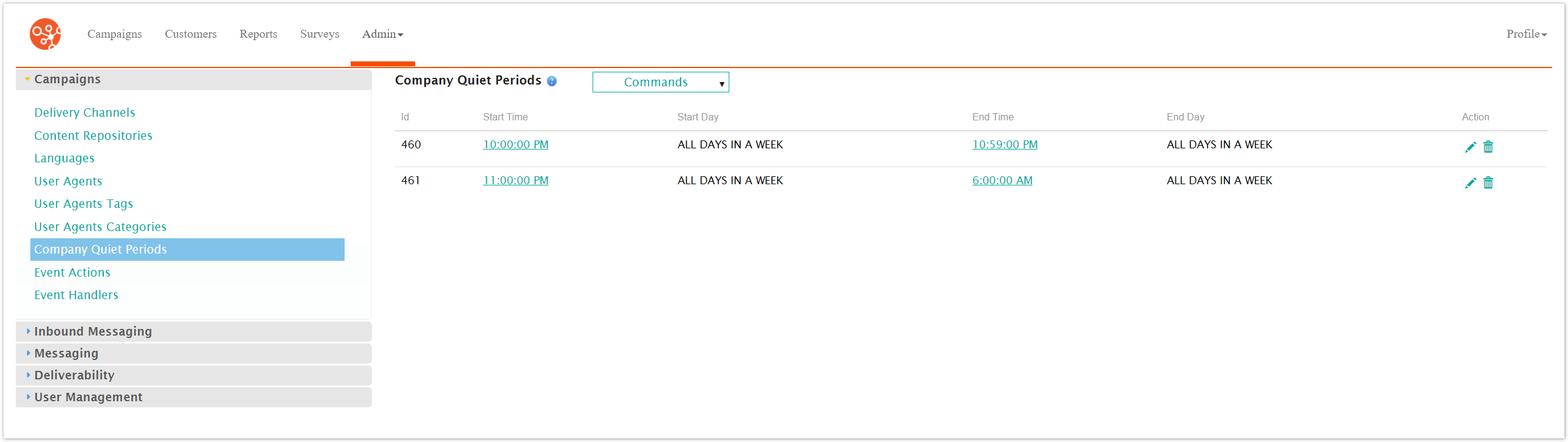
Click on the Event Handlers menu item under the Campaigns side menu.
The Event Handlers screen appears.

Select the Edit icon (
 ) beside the desired event handler.
The Enter Event Handler Information screen appears.
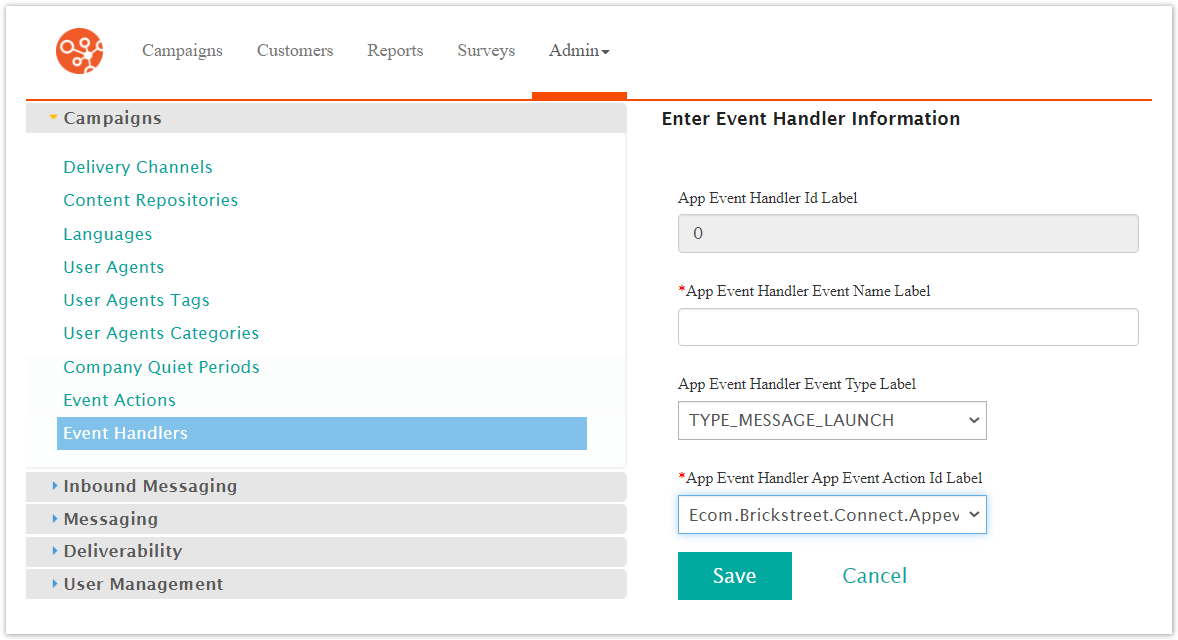
Edit the desired event handler information:
Event Name: The name of the event
Event Type: The type of event that will be monitored by the handler:
TYPE_MESSAGE_LAUNCH: A email/message is launched
TYPE_NEW_SUBSCRIPTION: A customer subscribes to a conversation
TYPE_BOUNCE: An email bounces (i.e. customer email address is invalid)
TYPE_OPEN: The email/message is opened
TYPE_UNSUBSCRIBE: A customer unsubscribes from a conversation
TYPE_CLICKED: A customer clicks on a link in an email/message
TYPE_CONVERSION: A customer performs the desired action/purchase for the message link
TYPE_SURVEY_SUBMISSION: A customer completes and submits a survey
TYPE_RECURRING_EXECUTION: The moment each time a recurring campaign launches
App Event Action ID: The action that is performed once the event occurs. For more information on configuring event actions, please see Event Actions.
To cancel without saving the changes to the event handler, click the Cancel button. You are returned to the Event Handlers screen.
Click the Save button. You are returned to the Event Handlers screen with the event handler displayed in the event actions list.