Editing Domains
Once created, the details of a domain are able to be edited if they have changed or need to be altered.
Editing a domain
To edit a domain:
Navigate to the Company Admin screen.
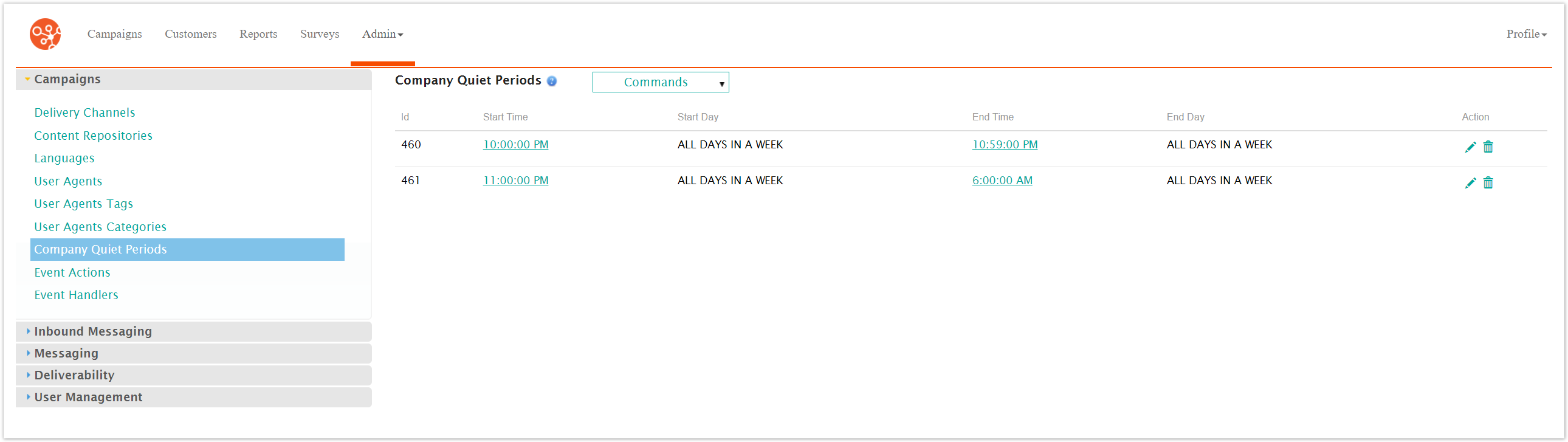
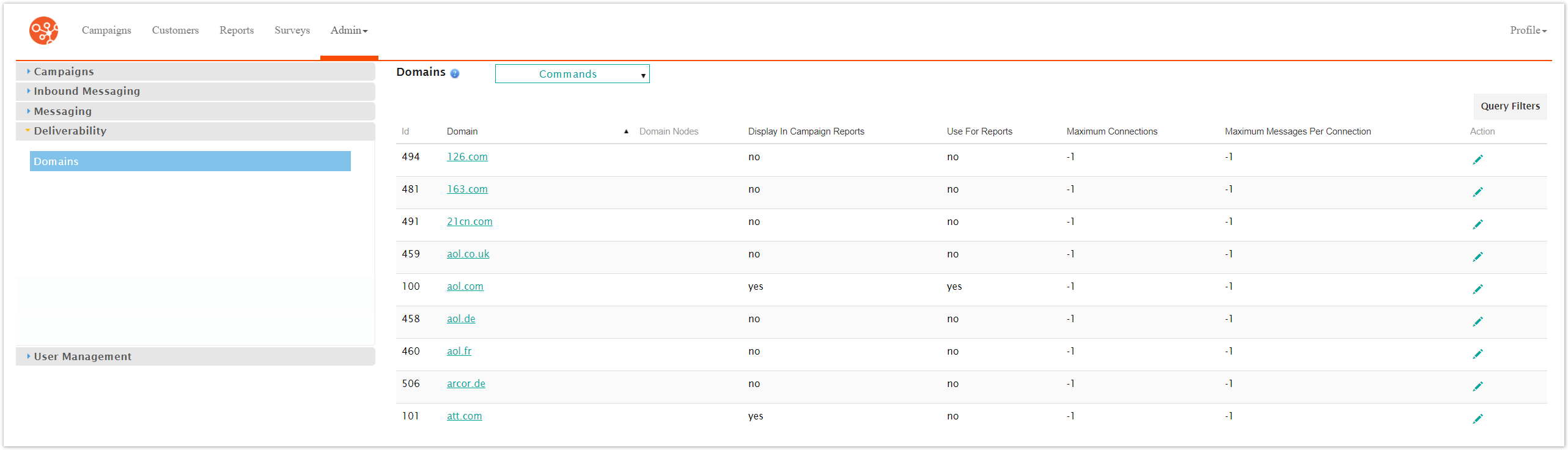
Click on the Deliverability sub-menu in the menu bar on the left, followed by the Domains menu option. The Domains screen appears.
Click on the desired domain name link from the list of domains or click on the Edit icon (
 ) beside the desired domain. The Enter Domain Information screen appears displaying the details of the domain.
Edit the domain information:
Domain: The name of the domain
Display in Campaign Reports: Checkbox that indicates whether the domain statistics will appear in campaign-based reports
Use For Reports: Checkbox that indicates whether the domain will be included in domain information reports
Enter the numerical information for the domain:
Note: The default value for the numeric fields is (-1) which indicates that the value is taken from configured system parameters. For more information on system parameters, please see Managing System Parameters.
Note: Enter a value of '0' to indicate an unlimited number for the Disable Failures and Max Messages per Hour fieldsMaximum Connections: The maximum number of connections the domain can manage at one time
Maximum Messages per Connection: The maximum number of messages that are able to pass through a connection to the domain at one time
Disable Minutes: The number of minutes the domain will be disabled for following a message failure
Disable Max Minutes: The maximum number of minutes the domain will be disabled following message failures
Disable Failures: The number of tolerated consecutive failures prior to it being temporarily disabled. Set the value to '0' to not disable the domain.
Warning Max Failures: The number of tolerated consecutive failures for a domain prior to notifying the Administrator about potentially blocking the domain
Note: This does not include temporary connection failuresMax Messages Per Hour: The maximum number of messages that can be sent to the domain per hour
To cancel without saving the changes to the domain, click the Cancel button. The Domain screen displays. The domain changes are not saved.
Click Save. The Domains screen appears with the domain changes are saved.