Creating SMPP Servers
To configure SMPP service you must first set up an SMPP server. Once the server is configured, the remaining services may be configured.

Creating a New SMPP Server
To create a new SMPP server:
Navigate to the Instance Admin screen. The System Parameters screen displays.

Click on the Messaging sub-menu in the menu bar on the left, followed by the SMPP menu option. The SMPP screen appears.
From the Commands dropdown, select New SMPP Server.

The Edit SMPP Server Information screen appears.
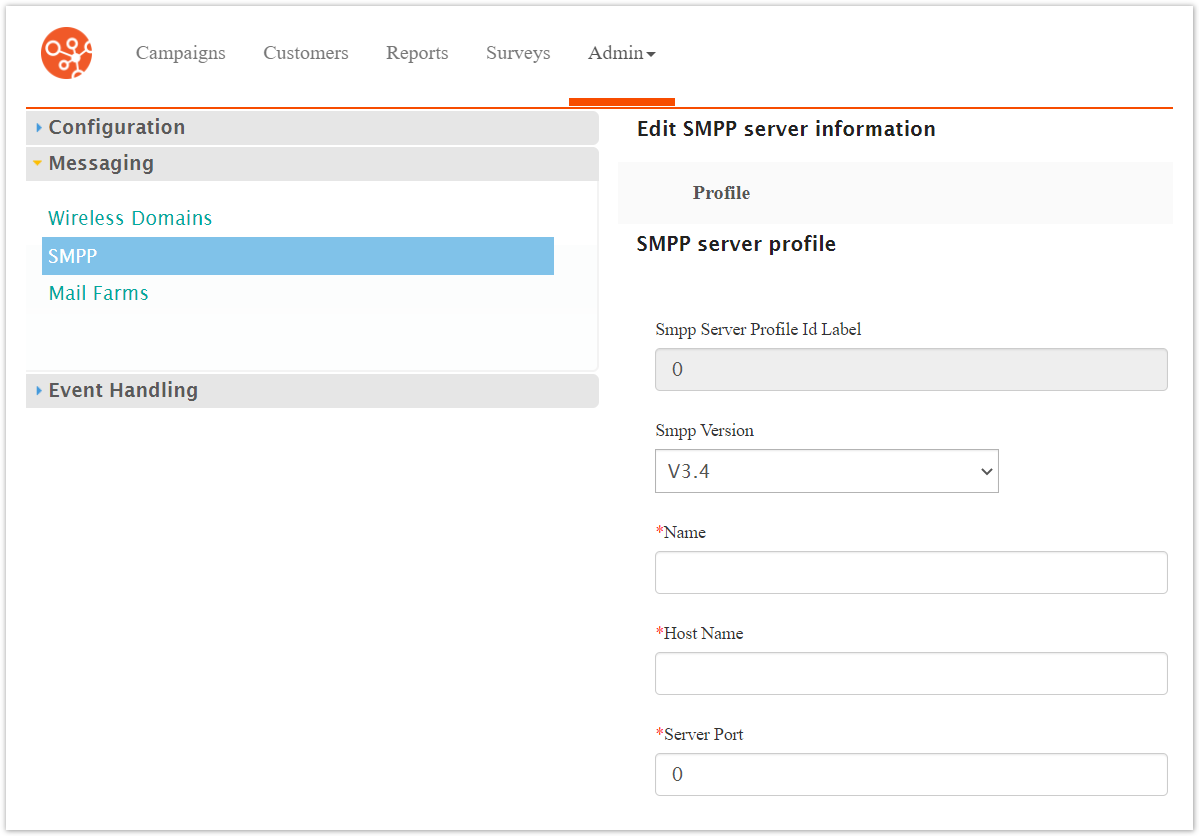
Enter the SMPP server details:
SMPP Version: The version of SMPP to use: 3.3 supports only GSM, 3.4 adds Tag Length Value (TLV), non-GSM SMS technology support as well as transceiver support.
Name: Unique name for the server
Host Name: Host name assigned to the device
Server Port: The appropriate port number, the last set of the numbers at the end of the IP address
Login Name: The login name used to access the server
Password: The password the login name uses to access the server
Message ID Base Number: The base number used to identify the message when sent
Messages per Second: The number of messages that can pass simultaneously if using synchronous messaging.
Max Connections: The maximum number of connections to the server
Extra SMSC IP List: The list of IP addresses of the proxy servers. Each IP address must appear on its own line.
To cancel without saving the SMPP server, click the Cancel button. The SMPP screen appears. The SMPP server is not saved and does not appear in the list of SMPP servers.
Click the Save button. The SMPP screen appears. The SMPP server is saved and appears in the list of SMPP servers.