Configuring Automated Main Messages
Once at least one trial message has been created for a segment, you are able to configure an automatic main message for the segment. Automated main messages are only able to be created once at least one trial message has been created since the automated main message is dependent upon a trial message being sent. Automatic main messages are able to select the best trial message and automatically send it to customers who have not received the initial trial message.
Note: Automated main messages can only be created for normal (one-time) campaigns. They cannot be created for recurring or event-triggered campaigns.
The best trial message is automatically selected based on the success rate of the message and the content:
The message header success rate (subject and sender name) is calculated based on the percentage of trial messages opened, from the total messages sent to customers
The message content success rate is calculated based on the percentage of trial messages clicked out of the total messages sent to customers
Note: For more information on how to select a winning or best qualifying message, please see Selecting a Winning Message for Automated Main Messages.
For more information on creating trial messages, please see Creating Trial Messages.
Creating Automated Main Messages
After the trial messages have been created and associated to a segment, the automated main messages feature will be enabled. To create an automated main message:
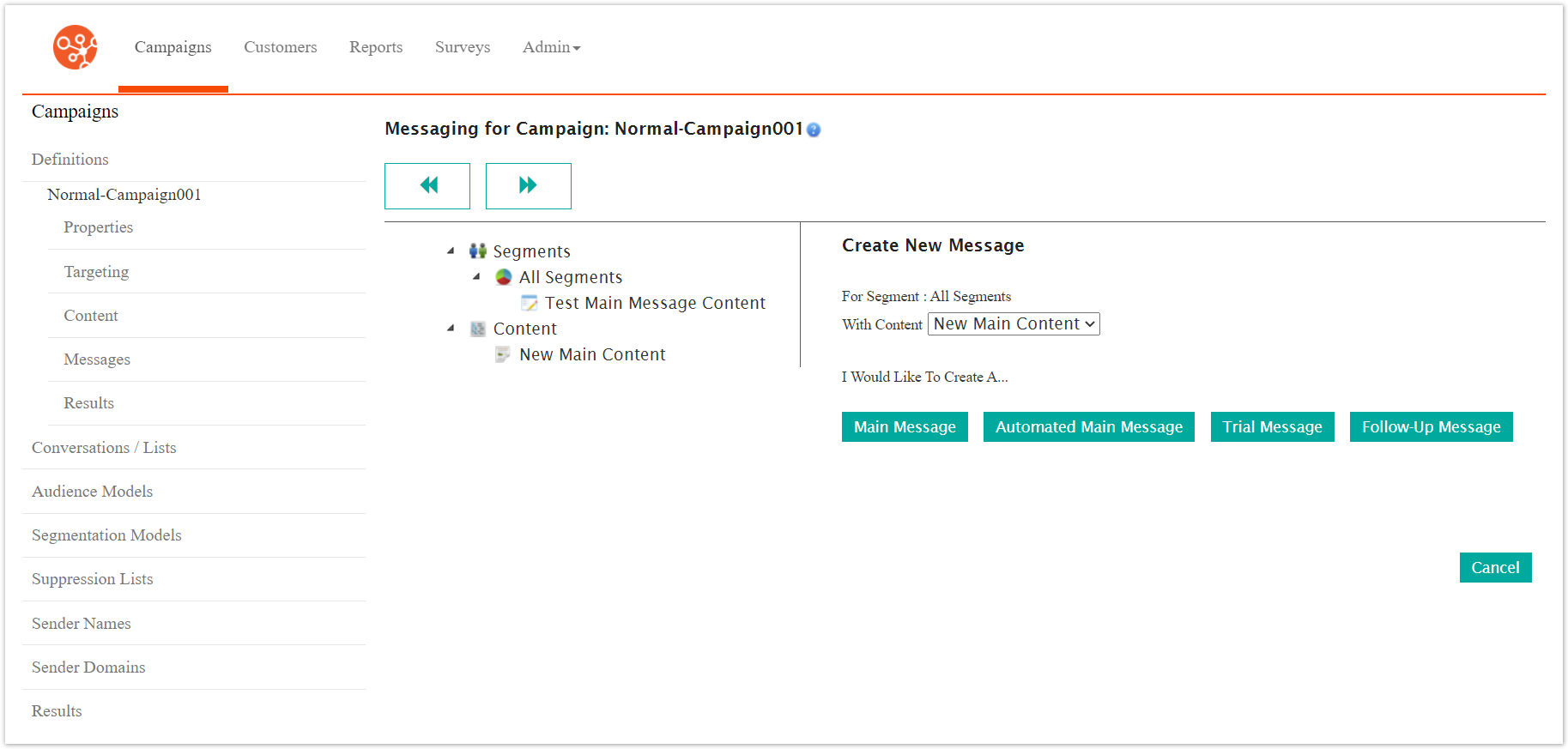
Navigate to the Messages screen by clicking on the Messages sub-tab in the Campaigns screen for the desired campaign that has a trial message associated to a segment.. In the left-side panel are displayed the segments available to the campaign and the content that has been created. For more information on creating trial messages, please see Creating Trial Messages.
Drag and drop the content for the automated main message onto the segment that has the trial message associated with it. The Create New Message panel appears in the right-side panel.
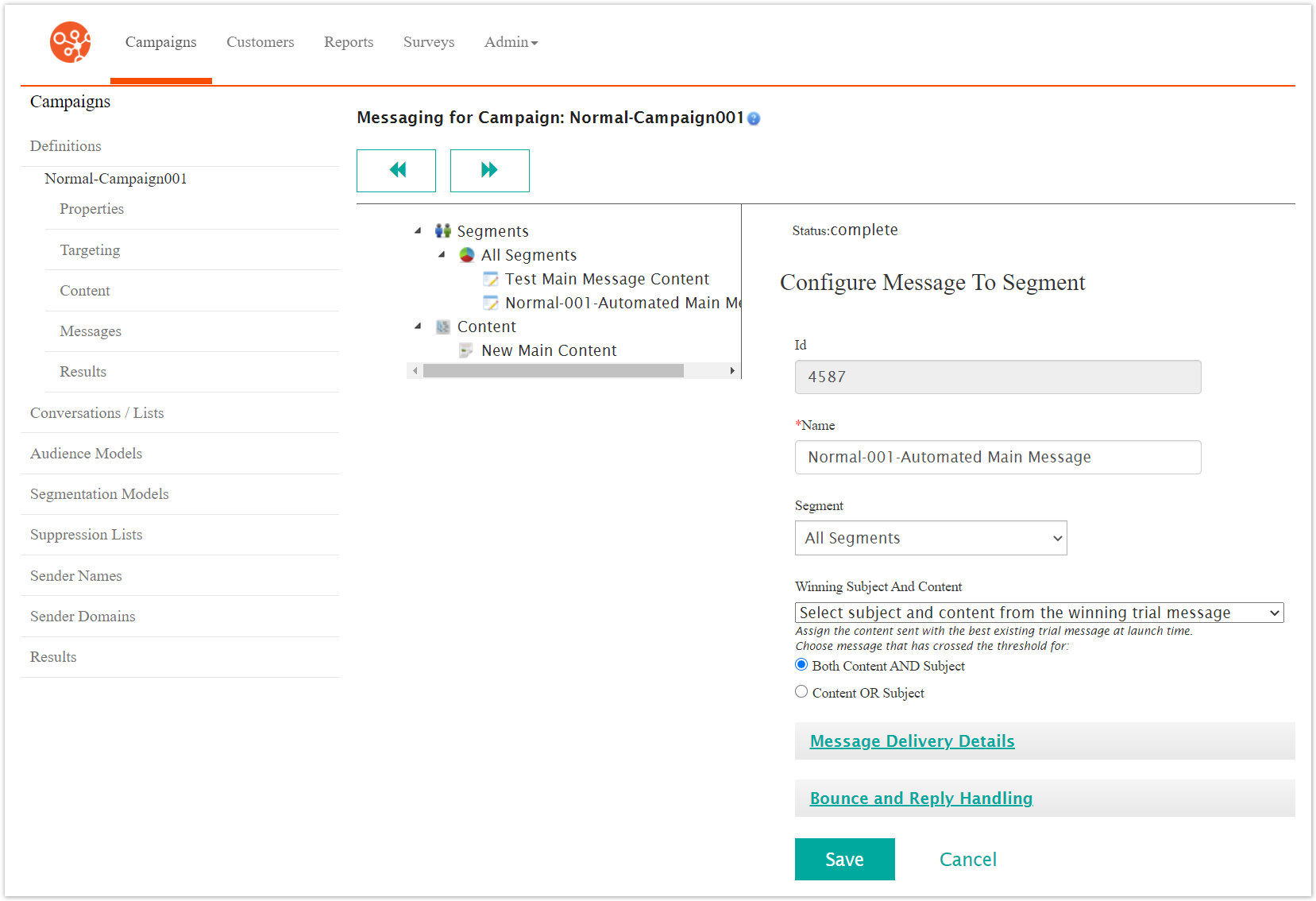
Click the Automated Main Message button. The Configure Message to Segment panel appears in the right-side panel.
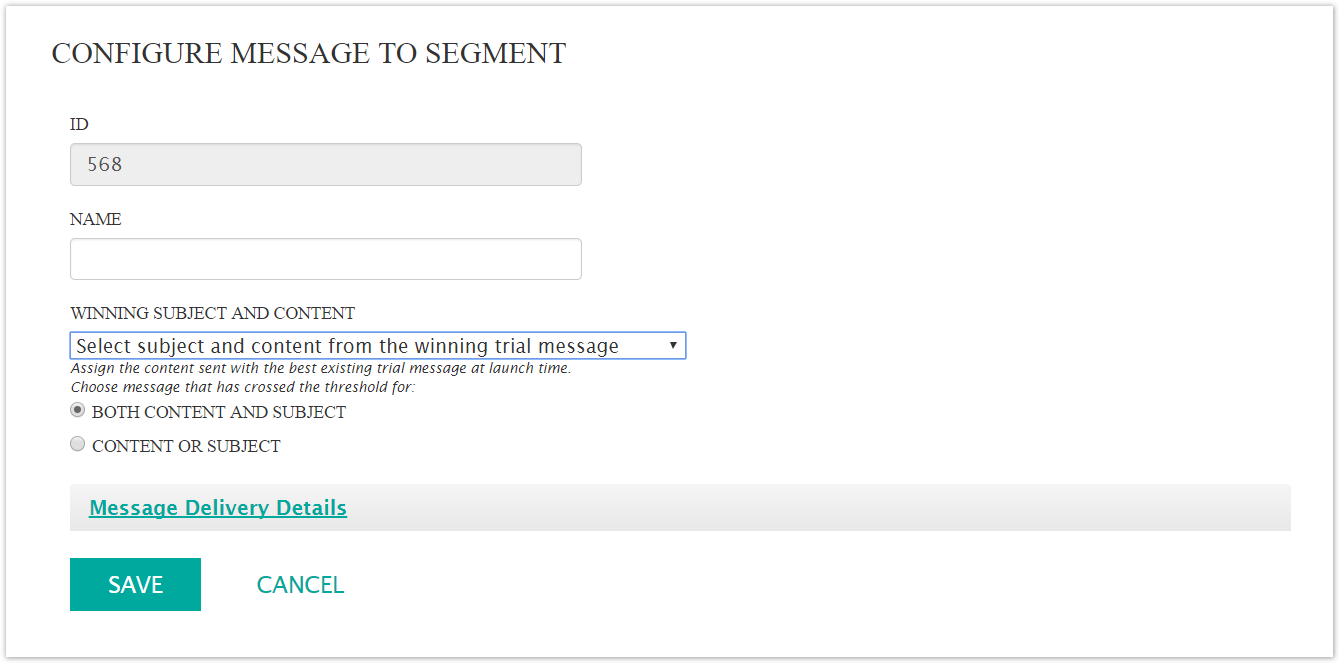
Enter the message information:
Name: The name of the automated main message. This is used internally and not visible to the customer.
Winning Subject and Content: Determines the subject line and content of the message based on the most successful content of the trail message or messages. The combination of the Winning Subject and Content dropdown selection and the radio buttons allows you to assign the content sent with the best existing trial message at the time of the message launch.
Select Subject and Content from the Winning Trial Message: Dropdown selection that takes both the subject line and the content from the single most successful trial message. If selected, choose one of the following radio buttons:
Both Content and Subject: Uses the most successful trial message that satisfies both the content and subject threshold values defined in the Rollout Schedule screen
Content or Subject: Uses the most successful trial message that satisfies either the content or the subject threshold values defined in the Rollout Schedule screen
Combine the Best Subject and Best Content from Existing Trials: Dropdown selection that displays the Combine Subject and Message section. This section displays all of the trial messages associated with the segment, allowing you to select the subject and content from different trial messages
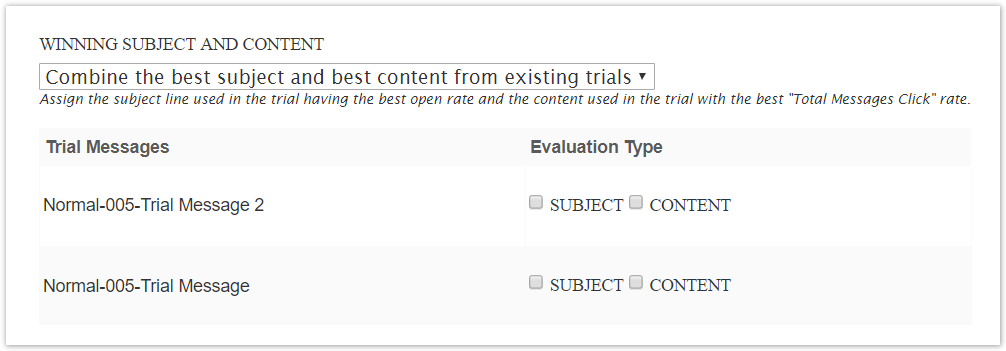 Note: If the criteria selected is Both Content and Subject, and only if both the email open rate and message click rate meets the threshold value, then the Automated Main Message is launched.
If the criteria selected is Content or Subject, and the email open rate or message click rate meets the threshold value, the Automated Main Message is launched.
To enter the message delivery details, click the Message Delivery Details link. The Message Delivery Details section appears:
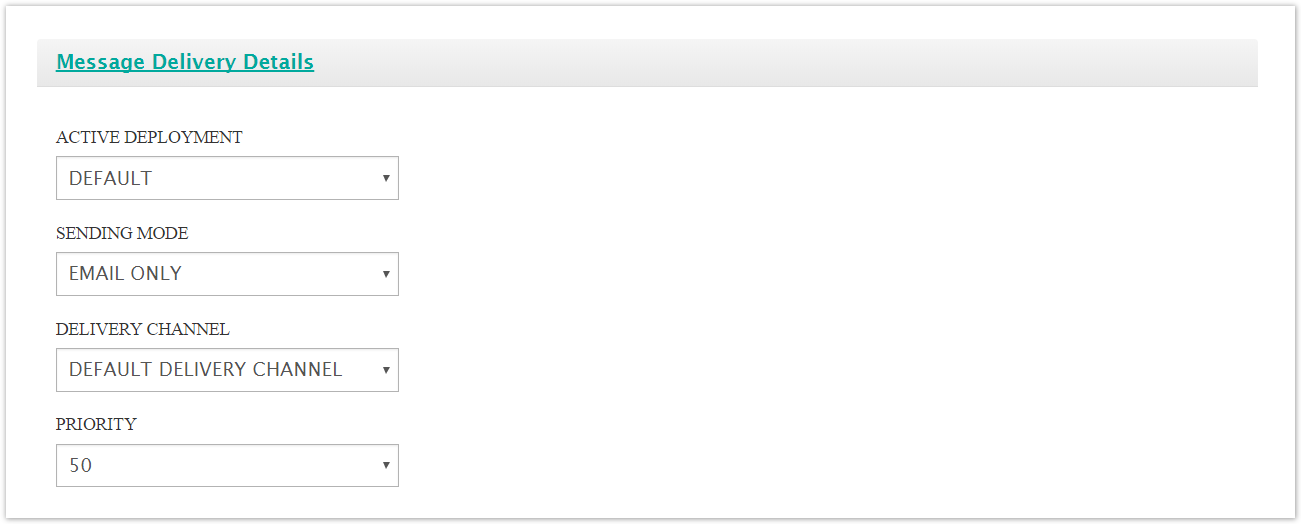
Enter the message delivery details:
Active Deployment: Determines the deployment (i.e. cluster) that will be used to send the message
Sending Mode: Defaults to 'Email Only'
Delivery Channel: The delivery channel used to send the message
Priority: The priority of the message in the message queue. The lower the number the higher the priority (e.g. a message of priority '20' has a higher priority than a message with priority '50')
To cancel without creating the message, click the Cancel button. The message details disappear. You are returned to the Messages screen.
Click the Save button. The message appears underneath the selected segment. The Bounce and Reply Handling section also appears.
Note: Connect allows you configure bounce and reply event-triggered campaigns for a message. That is, if Connect receives a bounce or a reply from a customer following the message being sent, you can configure an event-triggered campaign that will send a message to the customer in this eventuality. For more information on configuring bounce and reply handling settings, please see Configuring Bounce and Reply Handling Messages.