Editing Mail Farms
Once created, the details of a mail farm are able to be edited if they have changed or need to be altered.
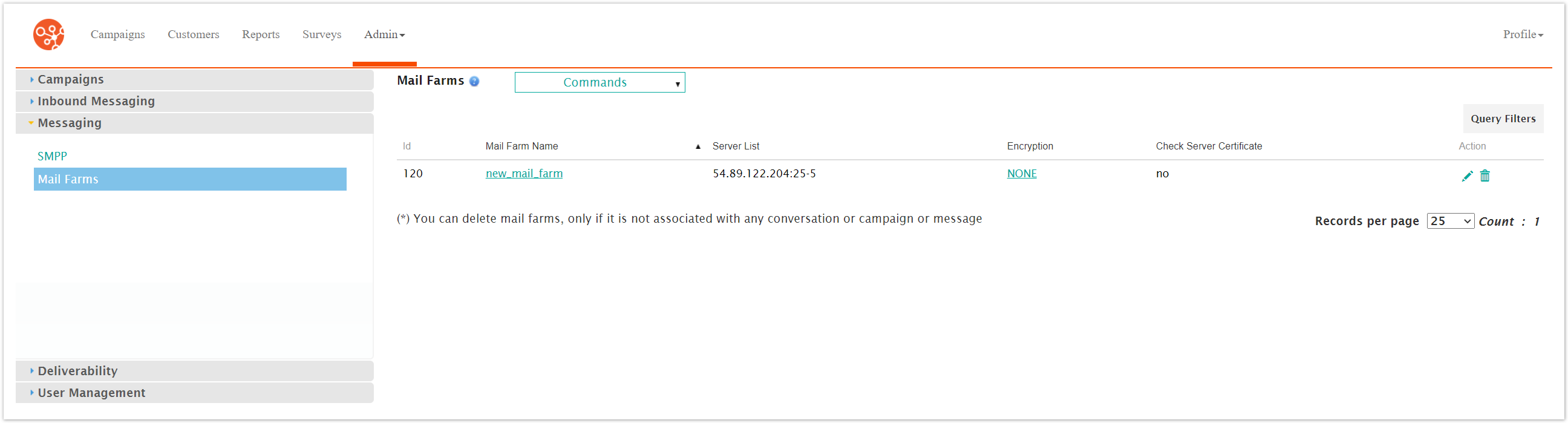
Editing a Mail Farm
To edit a mail farm:
Navigate to the Company Admin screen.
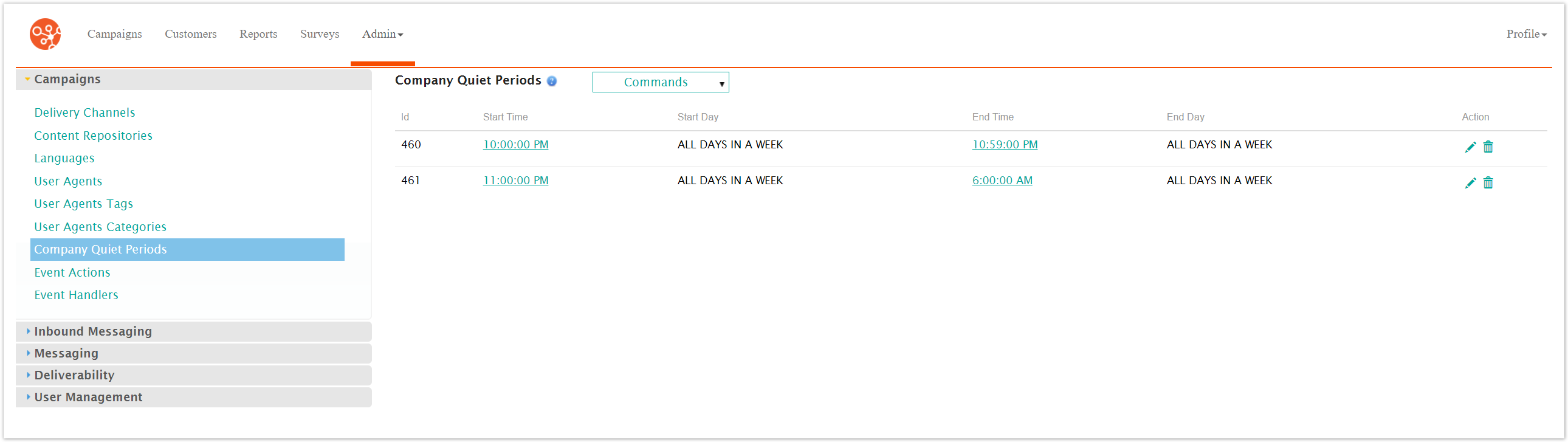
Click on the Messaging sub-menu in the menu bar on the left, followed by the Mail Farms menu option. The Mail Farms screen appears.
Click on the desired mail farm name link from the list of mail farms or click on the Edit icon (
 ) beside the desired mail farm. The Enter Mail Farm Details screen appears displaying the details of the mail farm.
Edit the mail farm details:
Mail Farm Name: A unique name for the mail farm
Server List: The list of servers the mail farm will connect to. List each server's IP address on a separate line.
TLS Capable: If checked, indicates that Transport Layer Security (TLS) will be enabled
SMTP Login: The login ID for the server or servers
SMPT Password: The password corresponding to the SMTP login
To cancel without saving the changes to the mail farm, click the Cancel button. The Mail Farms screen appears. The details for the mail farm are not saved.
Click the Save button. The Mail Farm screen appears. The changes to the mail farm are saved.