Creating Security Profiles
In order to provide users or groups of users functional access to Connect, a security profile must be created and associated to a user or group.

Creating a Security Profile
To create a security profile:
Navigate to the Company Admin screen.

Click on the User Management sub-menu in the menu bar on the left, followed by the Security Profiles menu option. The Security Profiles screen appears.
From the Commands dropdown, select New Security Profile.
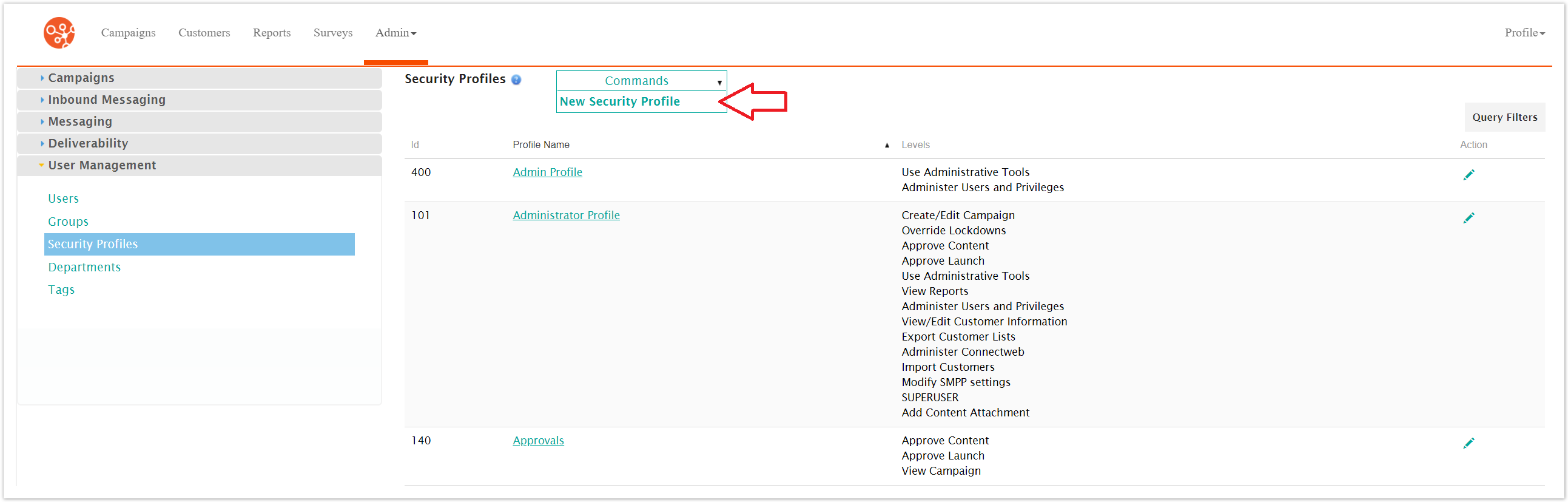
The Edit Profile Information screen appears.
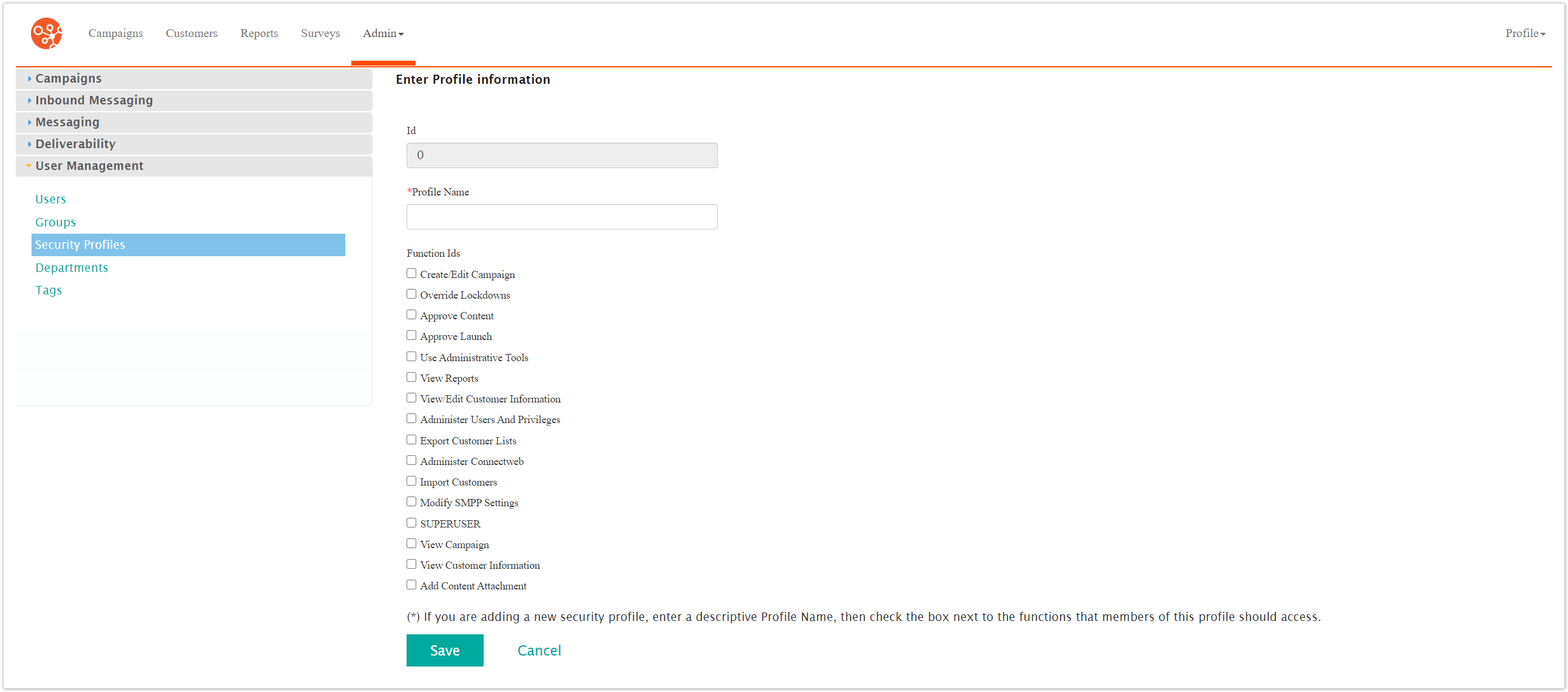
Enter the name for the security profile in the Security Profile Name field.
Select the desired security profile elements that will be associated to the security profile. These elements will provide the collection of access and action profiles that will permit users to access the system once the security profile is associated with them:
Create/Edit Campaign: Allows user to create and edit campaigns
Override Lockdowns: Allows user to override Connect lockdowns
Approve Content: Allows user to approve content created by them or others
Approve Launch: Allows user to approve the launch of campaigns by them or others
Use Administrative Tools: Grants access to the user to administrative tools for Connect
View Reports: Allows user to access and view reports
View/Edit Customer Information: Allows user to view and edit customer record information
Administer Users and Privileges: Allows user to access the User Manager area of Connect to administer users and privileges
Export Customer Lists: Allows user to export lists of customers
Administer ConnectWeb: Allows user access to administer ConnectWeb
Import Customers: Allows user to import customer lists
Modify SMPP Settings: Allows user to modify the SMPP settings for Connect
Superuser: Grants Superuser access to the user
View Campaign: Allows user to view campaign information only
View Customer Information: Allows user to view customer information only
Add Content Attachment: Allows user to attach attachments to message content
To cancel without saving the security profile, click the Cancel button. The Security Profiles screen displays. The security profile is not saved and does not appear in the list of security profiles.
Click Save. The Security Profile screen appears with the newly created security profile saved and added to the list.