4.6.3 Deploying the Connect UI in IBM WebSphere Liberty 21
|
$WLP_HOME = /opt/wlp $SERVER_CONFIG_DIR = /opt/wlp/usr/servers/server_name |
Preparing WebSphere Liberty for Connect
In order to deploy the Connect UI in WebSphere Liberty, you must create the server profile and configure a data source, security provider, the brickst.war. Once these have been configured, the Connect UI can be deployed. In the remained of this section, we will explain how to accomplish these tasks in the command prompt.
Liberty Setup
WebSphere Liberty will host all the web applications in the usr directory. The subdirectory servers holds all the files needed to deploy the Connect UI. You can create a new server profile by navigating to $WLP_HOME/bin and entering the command:
server create server_name
Once the server_name is created there will be a new folder with the same name in the servers subdirectory. The new server profile will have this directory structure.
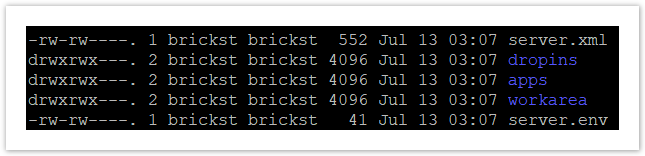
The server.xml file is the central configuration file for the server profile. All file changes will be done here.
Create $SERVER_CONFIG_DIR/lib/bs_connect
Copy ojdbc8-19.3.0.0.jar and connect_auth_websphere.jar to $SERVER_CONFIG_DIR/lib/bs_connect. Rename connect_auth_websphere.jar to connect_auth.jar.
Configure JNDI Data Source
In the server.xml configure the JNDI data source for Oracle database.
<!-- Oracle jdbc --><library id="oraclejdbc"> <file name="${server.config.dir}/lib/bs_connect/ojdbc8-19.3.0.0.jar"/></library><!-- JNDI Connection configuration --><dataSource id="BRICK_STREET_SOFTWARE_CONNECT_DS" jndiName="jdbc/BRICK_STREET_SOFTWARE_CONNECT_DS" type="oracle.jdbc.pool.OracleConnectionPoolDataSource"> <jdbcDriver libraryRef="oraclejdbc"/> <properties.oracle URL="jdbc:oracle:thin:@SERVER_NAME:1521:ORCL" user="USERNAME "password="PASSWORD" /> </dataSource>Configure Authentication Provider
Once the JNDI Data Source is defined, the next step is to define the JAAS setup for authentication and authorization.
<!-- Connect jar file --><library id="ConnectLoginModuleLib"> <fileset dir="${server.config.dir}/lib/bs_connect" includes="connect_auth.jar"/></library><!-- JAAS Login Module for connect --><jaasLoginModule id="myCustom"className="com.kana.connect.auth.websphere.ConnectLoginModuleLiberty"controlFlag="REQUIRED" libraryRef="ConnectLoginModuleLib"> <options myOption1="value1" myOption2="value2"/></jaasLoginModule><!-- JAAS Login Context --><jaasLoginContextEntry id="system.WEB_INBOUND" name="system.WEB_INBOUND" loginModuleRef="myCustom, hashtable, userNameAndPassword, certificate, token" />For session management, if a session invalidates due to session time out an error is printed when accessing resources with such a session. To avoid this error, Liberty needs to be told to invalidate such session. This is done by adding the following tag:
<httpSession invalidateOnUnauthorizedSessionRequestException="true" />Deploy the Connect UI
With the authentication defined, the next step is to deploy the brickst.war along with context root name and authorization group name (CONNECT_ADMIN_GROUP).
<application contextRoot="brickst" location="brickst.war"> <application-bnd> <security-role name="ROLE_ADMINUSER"> <group name="CONNECT_ADMIN_GROUP"/> </security-role> </application-bnd><classloader commonLibraryRef="ConnectLoginModuleLib" /></application> <!-- Automatically expand WAR files and EAR files --> <applicationManager autoExpand="true" startTimeout="240" />Liberty server will deploy the brickst.war file from $SERVER_CONFIG_DIR/apps. Copy brickst.war to the server's app directory.
Running Liberty
Start Liberty from $WLP_HOME/bin by running the following command:
server start server_name
You can now access the UI in your browser by visiting the following URL http://localhost:9080/brickst
Stop Liberty from $WLP_HOME/bin by running the following command:
server stop server_name
Stop the server anytime you want to make changes to server.xml
By default Liberty will bind to 127.0.0.1 only. The server will run on all available network addresses by changing the server.xml
<!-- To access this server from a remote client add a host attribute to the following element, e.g. host="*" --> <httpEndpoint id="defaultHttpEndpoint" httpPort="9080" httpsPort="9443"host="*" />host="*" will bind Liberty to all available network address. Changing the value of httpPort and httpsPort will change the port that Liberty binds.